Mouse lag has two flavors and it pays to tell them apart before touching anything: input delay (the click happens late - a shooting trigger feels like pulling through mud) and movement stutter (the pointer jerks, skips or freezes momentarily while buttons stay responsive). The first is usually a settings or connection problem; the second adds sensor or surface causes. Test what you can prove: the mouse tester shows whether clicks register at all, and the DPI checker exposes a sensor that skips counts at speed.
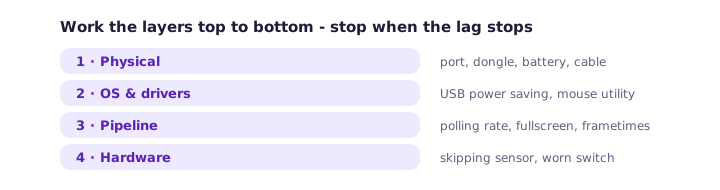
Layer 1 - the physical connection
USB ports fail quietly. Move the mouse to a different port - directly on the machine, not through a hub, and prefer USB 2.0 ports for older wireless dongles (a known compatibility quirk). On wireless mice, the dongle wants line of sight within half a meter; behind a metal PC case under a desk, 2.4 GHz interference from Wi-Fi and peripherals turns into micro-stutter. Bluetooth mice suffer the worst under congestion - if your board routes audio over Bluetooth too, that is the first suspect. Swap or charge the battery: a wireless mouse at 20% battery throttles its polling to survive.
Layer 2 - power management and drivers
Windows aggressively suspends USB devices: in Device Manager, every "USB Root Hub" and the mouse itself have a "allow the computer to turn off this device" setting - untick it. Then update or cleanly reinstall the driver (vendor software first, otherwise the generic HID driver). A driver that survived a Windows update half-broken produces exactly this symptom set. On macOS, third-party "smooth scrolling" and mouse-shaping utilities intercept events and add latency - quit them and compare.
Layer 3 - polling rate and the frame pipeline
A mouse reports its position on a fixed schedule - 125 Hz (every 8 ms) on basic mice, 500-1000 Hz on gaming models. The 8 ms floor is invisible to most people but readable in fast games. Set gaming mice to their maximum stable polling; if a 1000 Hz setting makes stutter worse on a weak CPU, 500 Hz is the better trade. Beyond the mouse, check that the game renders at a stable framerate - input feels laggy when frametime spikes, no matter how fast the mouse is. Fullscreen mode (or hardware acceleration off in browsers) removes a compositing layer of delay.
Layer 4 - when it is the hardware
A sensor that skips counts during fast flicks (visible as wild DPI-checker variance), a cable with a fractured conductor (lag appears when the cable bends a certain way), or a switch with a worn contact (clicks register late and inconsistently - the double-click failure is the late stage of the same wear) all mean the hardware is ending its life. When two of those signs appear together, replacement beats repair - the buying checklist keeps the next purchase honest.
Frequently asked questions
Why is my wireless mouse laggy but my wired one is fine?
Almost always radio: dongle placement, 2.4 GHz congestion from Wi-Fi, or a low battery throttling the poll rate. Move the dongle to a front port or extender before blaming the mouse.
Does polling rate really matter?
At 125 Hz the report interval is 8 ms - invisible for desktop work, measurable in fast games. Going 500→1000 Hz is worth about 1 ms and costs CPU; going from 125→500 Hz is the upgrade that actually changes feel.
Why does my mouse lag only in games?
Games stress the whole pipeline: GPU frametime spikes read as input delay, and exclusive fullscreen bypasses compositor buffering that adds a frame. Stable frametimes fix "mouse lag" that the desktop never shows.
Can a bad USB cable cause delay?
Yes - a fractured conductor inside the cable makes intermittent contact that reads as stutter. The tell: symptoms change when the cable bends at a specific spot.
Related: run the full mouse test · expose a skipping sensor · the worn-switch failure mode · checking the keyboard too.